What Are MoneyGeek's Business Insurance Matching Tools?

MoneyGeek's main business insurance matching tools come in three forms:

  • Banner provider matching tool: Provided at the very top of pages below article titles as a quick means for business owners to be matched to providers
  • Standalone provider matching tool: A flexible tool that directly mirrors the banner provider matching tool, which can be placed throughout articles
  • Calculator matching tools: Primarily provide cost estimates with a dual functionality of matching businesses to a provider.

For clarity, I've also provided images of each so you can understand what each tool refers to on MoneyGeek's business insurance pages.

Banner Provider Matching Tool

MoneyGeek Banner Business Insurance Provider Matching Tool

This matching tool is positioned before our main content, for when you are in a hurry and want to start comparing options immediately. In the image below, the red box highlights how MoneyGeek's tool appears on the page.

Standlone Provider Matching Tool

MoneyGeek Standlone Business Insurance Provider Matching Tool

You'll see the standalone provider matching tool as a secondary version of the banner matching tool throughout our articles. It is meant to serve as another option once you have read our guides further, gotten enough advice for you to make a decision, and want an avenue for getting tailored coverage.

Calculator Matching Tools

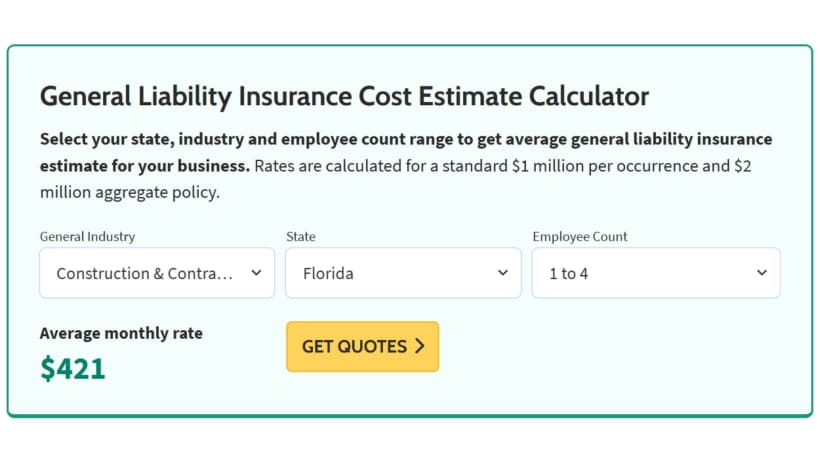
Calculator Business Insurance Matching Tool

This third tool is a secondary function of the MoneyGeek business insurance calculator and is provided when average costs are the main focus of our guides. It looks like the following example image, though selections may vary depending on the topics of our guides.

How Our Business Insurance Matching Tools Work

Below, we'll break down step by step how we get recommendations specifically for your business with each of our matching tools.

How Our Banner and Standalone Provider Matching Tools Work

Both the banner and standalone provider matching tools work as you use them.

  1. 1

    Select your industry and state

    You can enter your specific industry, area and location in both of these tools. The work area you select is then aligned with the NAICS code assigned to it, and providers are narrowed based on the value they provide to your industry's needs, as determined by our research. Your state ensures the provider you are matched with is available in your area and has affordable rates for your location.

  2. 2

    Click get matched

    Once you click get matched, our system will display a pop-up with your ideal match within our network, including the reasons and the option to click off to get quotes. You can also click show more to see other partners in order that may also fit your needs.

  3. 3

    Get quotes with your match

    Once you feel comfortable getting quotes with your match, click the quote button for the provider to be directed to their pricing form. MoneyGeek does not provide pricing directly, and your rate must be verified with your provider match.

How Our Calculator Matching Tools Work

The calculators in our business insurance content are tailored to the page's specific focus. So, in other words, if you see a cleaning business insurance page with it on it, the calculator assumes this automatically for your convenience. They are all configured manually on our website's backend, based directly on our proprietary datasets.

Here is how it works.

  1. 1
    Enter your business profile

    Select the options that fit your business most closely out of the selections on the calculator. Once you have selected them, you'll be presented with a tailored insurance cost estimate based on your selections from our proprietary dataset. Options can include coverage type, general industry (the category your industry falls into), sub-industry (specific profession), state, vehicle type (for commercial auto), and employee count range.

  2. 2
    Click get quotes

    Once you click Get Quotes, you'll be matched to a provider based on the details you entered. Our recommendation is tailored to meet your coverage needs while balancing affordable premiums and great service. You'll see a pop-up with your recommended provider, and you can choose to click show more to see other partners that may be a fit.

  3. 3
    Get quotes from your provider match

    If you're satisfied with your match, you can click the provider's get quotes button to be directed to their website form. From there, you can get pricing directly from the insurers. We do not provide rates, and all premiums you receive are from an insurer or broker in our network.

About Connor Bolton


Connor Bolton, Senior SEO and Content Manager (Business & Pet), MoneyGeek

Connor Bolton is Senior SEO and Content Manager at MoneyGeek, where he leads the business and pet insurance editorial teams. He sets the research framework, data standards and content structure for his team. All content goes through his accuracy review before publication. Connor also writes in-depth guides and has spent more than four years covering insurance products across personal, commercial and specialty lines.

The research infrastructure Connor built covers auto, home, renters, life, health, business and pet insurance across pricing analysis, carrier research, customer experience and coverage evaluation. It includes over 6 million data points for business insurance across 408 industry areas, all 50 states and 16 vehicle types. The pet insurance side covers over 5 million profiles across 18 major providers, 100+ breeds and ages up to 20 years. Connor’s insurance research and his team's work has been cited by the U.S. Chamber of Commerce, Allstate, Liberty Mutual, CBS News, Forbes and LegalZoom.

Connor also talks with underwriters and carrier liaisons at Ethos, The Hartford, ERGO NEXT, Nationwide and State Farm, and monitors business and pet owner communities on Reddit. Those sources shape how his team evaluates carriers, structures rate analysis and writes for human buyers rather than search engines.

For questions about MoneyGeek's business and pet insurance content, contact him at connor@moneygeek.com or on LinkedIn.